
Mythbusting Active Directory DNS integration
Active Directory DNS is a must, but it doesn’t have to be paired with Microsoft DNS. Learn how easy it is to migrate to BlueCat in Active Directory.



 Key takeawaysKey takeaways are generated with AI assistance. Because automated summaries can occasionally contain errors or miss important context, always refer to the full blog post for complete information.
The article explains why DNS is essential for Active Directory (AD) and dispels the myth that AD requires Microsoft DNS specifically. It outlines how AD uses DNS SRV records and dynamic updates for service discovery and details the operational challenges of decentralized Microsoft DNS in multi-domain environments. The piece then presents BlueCat as an interoperable, centrally managed DNS alternative, describing technical benefits and a three-step migration process to replace Microsoft DNS with BlueCat while preserving AD functionality and minimizing downtime.
Why is DNS required for Active Directory and which DNS records are critical for AD functionality?
DNS is required because Active Directory relies on DNS for service discovery and for directing clients to domain controllers and site services. The critical record types are SRV records, which locate domain controllers and AD services, and A/AAAA records for host addressing. AD typically uses dynamic DNS updates so domain controllers and clients can register and refresh these records automatically. Each AD domain requires a DNS zone—often matching the AD domain name—so AD-specific subdomains and records can be stored, divided, and resolved appropriately.
What are the disadvantages of using decentralized Microsoft DNS with Active Directory?
Decentralized Microsoft DNS in environments with many AD domains introduces complexity and operational limitations because some configuration is centralized (e.g., Global Catalog) while other DNS data remain local. This partial decentralization causes administrative confusion, increases the likelihood of configuration mistakes, and prevents a unified view of the DNS namespace across domains and forests. The result is a proliferation of conditional forwarders rather than a clean separation between authority and recursion, complicating management and troubleshooting.
What are the steps and key considerations to migrate Active Directory DNS from Microsoft DNS to BlueCat?
The article describes a three-step approach: (1) Change AD DNS settings to point to BlueCat DNS server IPs so AD uses BlueCat for name resolution. (2) Migrate existing records and ensure dynamic updates by running ipconfig /registerdns for A/AAAA records, letting the system update records automatically, or importing zones into BlueCat. (3) Rebuild AD-specific records by restarting NetLogon (net stop netlogon; net start netlogon) to recreate service records. For more complex environments, BlueCat recommends XML zone import into Address Manager, update DHCP option 6 to the BlueCat servers, configure global forwarding on Microsoft DNS, remove migrated zones from MS DNS, and finally uninstall DNS from domain controllers once all clients use BlueCat—allowing a phased, zero-downtime migration.
Active Directory DNS requirements are exactly that. Requirements. Without DNS, Active Directory cannot function.
Active Directory (AD) is an included directory service in most Windows Server operating systems. Today, it is an umbrella title for a wide range of directory-based identity-related services.
However, even though Microsoft developed it doesn’t mean that you have to pair it with Microsoft DNS servers.
This post will explore the basics of why DNS is required for Active Directory. Then, it will bust through the myth that you must pair Microsoft DNS with it to function. Finally, it will detail the three steps admins can take to switch from Microsoft DNS to BlueCat in Active Directory.
Active Directory DNS: The basics
Is DNS required for Active Directory?
The short answer is yes. Active Directory uses domain name system (DNS) records for service discovery.
A domain controller is a server that plays an Active Directory Domain Services (AD DS) role. Active Directory steers client devices to domain controllers for the various services and sites that make up an AD installation. Service (SRV) records locate domain controllers for Active Directory.
AD DNS typically uses dynamic DNS updates to keep this data up to date.
Active Directory zones
Each Active Directory domain needs a DNS zone to hold its records. This is most commonly a zone with the same name as the AD domain. But it can also be a parent zone in the DNS namespace.
Additionally, records for the domain can be divided into multiple smaller DNS zones. Nearly all of the AD-specific DNS records for a domain fit into a half dozen or so DNS subdomains. These can readily be divided out into their own separate zones.
To resolve the rest of an organization’s private DNS namespace, many AD administrators will then set up forwarding for non-local queries to other DNS servers.
Active Directory reliance on integrated DNS is a myth
Microsoft developed both Active Directory and the Microsoft DNS service. When setting up a new AD domain, if a DNS zone cannot be found for the domain’s DNS records, the setup wizard will offer to install Microsoft DNS and set it up for the domain.
Therefore, it’s a common misperception that it requires Microsoft DNS servers to function properly. That’s simply not the case. Mythbusted!
As a matter of fact, Active Directory is completely agnostic as to which server it works with. (In the same way, DNS is agnostic about which directory service it works with). As long as the design and configuration of the DNS solution are interoperable with Active Directory, the two will work together.
The disadvantages of using Microsoft DNS
There are clear disadvantages to using Active Directory with a decentralized Microsoft DNS infrastructure.
Environments with a large number of Active Directory domains come with many complexities. And with complexities come limitations.
Some configuration is done centrally (stored in Global Catalog), some is not (stored locally). This partial decentralization leads to mistakes and confusion. AD lacks a centralized view of the DNS namespace across domains and forests.
This leads to a web of conditional forwarding rather than a clean separation between recursion and authority.
Why BlueCat is better
BlueCat DNS offers clear benefits over decentralized Microsoft DNS while allowing for interoperability with Active Directory.BlueCat Integrity easily integrates into the Active Directory environment to support existing Microsoft deployments in place of Microsoft DNS.
Administrators can create Active Directory zones in BlueCat Address Manager, enabling dynamically updated resource records. Once completed, the configuration deploys. Then, admins can configure Active Directory servers to use a BlueCat DNS/DHCP Server (BDDS).
For advanced users, BlueCat supports the option for secure DNS updates from Active Directory clients using GSS-TSIG. This is Microsoft’s own security protocol for DNS messages. This includes granular permissions that permit clients to update specific names. It also includes explicit controls on which record types those clients can update.
BlueCat also adds significant technical and security capabilities. The BlueCat platform does far more than Microsoft DNS—and free comes at a cost.
How to switch from Microsoft DNS to BlueCat in Active Directory
Configure your network with the appropriate DNS zones and permissions to support an AD domain. Following that, it only takes three steps to set up Active Directory to work with BlueCat.
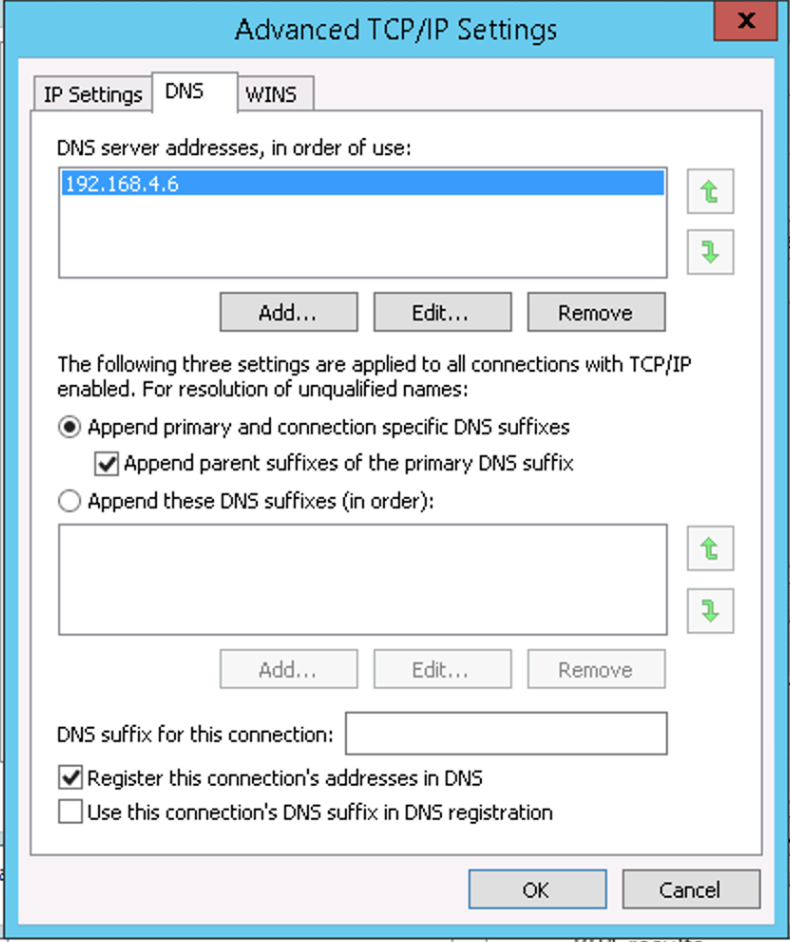
Step 1: Change the DNS settings in Active Directory
Active Directory usually defaults to the IP services that already exist on the servers. All you have to do is select a different DNS service by entering one or more DNS server IP addresses. Select BlueCat as your DNS of choice for Active Directory.
Step 2: Migrate existing records
Now, you can migrate over the records and settings that already exist in the system. Doing so ensures that they receive dynamic updates. (This will happen automatically based on your system settings, but you might want to make the shift all in one go.)
There is a command line involved, but the effort is trivial. You start by running the command
ipconfig /registerdns
to register the A and/or AAAA record(s) for the server name. Here’s what it looks like:

Meanwhile, here’s what’s happening behind the scenes as the records are automatically updated by the system in the background:

Step 3: Rebuild your Active Directory records
This step recreates all of the other AD-related records for the chosen domain controller. To recreate them, restart the NetLogon service in the Services administrative tool. Or, the command line
net stop netlogon
and
net start netlogon
also works.
More complex migration needs
The process outlined above will work fine for a simple domain. However, you might have other records in your DNS zone that you want to migrate.
For such cases, this leaves the BlueCat version of the zone incomplete. It will remain so until all domain controllers have been moved over and all other records have been recreated. That can occur either via dynamic DNS or manually.
Some customers prefer to have the BlueCat Professional Services team assist with the migration effort. BlueCat’s standard approach works this way:
- Import the DNS zones into BlueCat Address Manager using the XML import format, and validate the result.
- Reconfigure DHCP option 6 to direct dynamic clients to the BlueCat DNS servers.
- Configure global forwarding to BlueCat on all Microsoft DNS servers.
- Remove the migrated zones from Microsoft DNS. This should allow global forwarding, which causes the records to resolve from the BlueCat DNS servers.
- Once all DNS clients in the domain are using BlueCat DNS servers, uninstall the DNS service on the domain controllers entirely.
This process allows for reconfiguring statically-configured DNS clients to use BlueCat over time. This is a more user-friendly alternative to requiring updates for all devices during a single maintenance window. Executing this procedure correctly should result in zero downtime.
Implementing Active Directory-integrated DNS is just this easy—and nuanced. It really depends on your primary DNS configuration.
Published in:

Mark is a Senior Product Marketing Manager at BlueCat Networks.
Related content

Get answers from the LiveNX data you already have with LiveAssist
Learn how LiveAssist, the AI-powered add-on for LiveNX, turns your network data into fast, guided answers, with value you can see in days.

Get total control of your DDI infrastructure with Micetro’s unified API
Stop juggling between network tools and use Micetro’s RESTful API for complete control over your DDI infrastructure and cloud environment.

BlueCat MCP servers bring network intelligence to your AI assistant
Our MCP servers provide a standard integration layer that makes it easy to connect the AI tools you already use to BlueCat products.

We bet on Intelligent NetOps two years ago. Infoblox now has too.
With Infoblox acquiring Kentik, BlueCat’s CEO confirms its vision for a single platform unifying DDI, network monitoring, and observability.